Docs / Getting started
Build with Claude Code
Once you have built your first automation by hand, you know what a connection, a function and a script are. From here an assistant can build the next one for you: you describe what should happen, it writes the functions and the script into your sandbox, runs them, reads the result and fixes what is wrong. You review the outcome in the browser.
If you have not, start with your first automation. This page sets up Claude Code in the Claude desktop app (the Code tab). Any assistant that speaks MCP over HTTP works the same way.
What you need
- The Claude desktop app, signed in, with the Code tab available.
- A sign-in to your tenant, and the sandbox.
- A folder on your computer for the work, for example
~/a9script-work.
1 · Mint a token for the sandbox
In the browser, open the menu under your name → Account → New token:
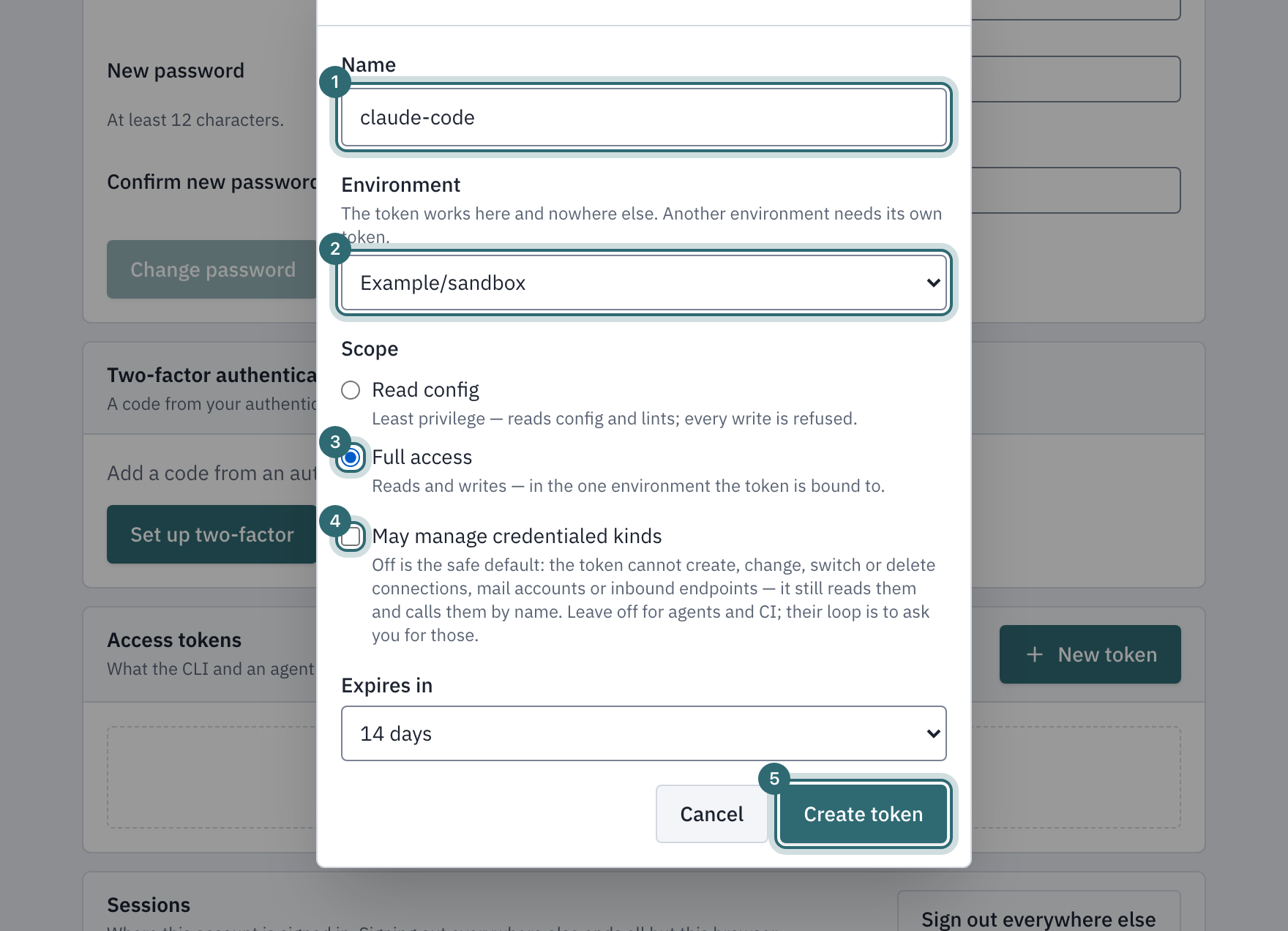
- Name — something you recognise later, for example
claude-code. - Environment — your tenant’s
sandbox. A token works in one environment only. - Full access — so the assistant can write. Writes stay inside the one environment the token is bound to.
- May manage credentialed kinds — leave it off. The assistant can still read and call every connection by name; creating or changing a connection, a mail account or an endpoint stays with you.
- Create token, then Copy token. It is shown once.
The token expires; the longest lifetime is the installation’s to set. People and access says what a token can do and how tokens are managed.
2 · Connect the folder to your sandbox
Create a file named .mcp.json in your folder:
{
  "mcpServers": {
    "a9script": {
      "type": "http",
      "url": "https://<your authoring address>/api/mcp",
      "headers": { "Authorization": "Bearer <your token>" }
    }
  }
}
Replace <your token> with the token. The file holds a credential: keep it
out of any repository you share, and delete it when the token expires.
3 · Install the authoring skill
The skill is the assistant’s manual: the loop it follows, the platform’s
rules, and the mistakes it must not make. On the product’s website its files are published
at /skill/files.txt — one path per line, each path under /skill/; in a
checkout of the product they are docs/skills/a9script-authoring/.
The quickest way: open the folder in the Code tab (step 4) and ask
Download every file listed in
<website>/skill/files.txtfrom<website>/skill/into.claude/skills/a9script-authoring/, keeping the paths.
Then start a new session in the same folder, so the skill is loaded. To read the skill yourself: the loop, the folder model, scripts, debugging, over MCP.
4 · Open the folder in the Code tab
Start a new session in the Code tab and choose the folder. The app reads
.mcp.json and asks once whether to use the a9script server — allow it.
Type /mcp to see it connected, with its tools: whoami, entity,
describe, probe, apply, run, history and the rest.
Check the connection with a first request:
Use a9script
whoamiand tell me which tenant and environment this token is for.
5 · Describe the automation
Say what should happen in the words of your business, and name the systems:
In our sandbox there is a connection
crm. Build a scriptnightly-contactsthat runs every day at 02:00 UTC, reads the contacts the CRM changed since the day before, and logs how many there were. Configure the CRM call as a function. Test it before you finish.
Name connections that already exist. A new connection or endpoint is yours to create in the browser — the token from step 1 is not allowed to.
The assistant works in a loop: it looks at what exists (entity,
describe), tries single calls (probe), writes the functions and the script
(apply, first with a dry run), starts a test run (run) and reads what
happened (history), then fixes and repeats.
6 · What it will ask you for
The assistant stops and asks, by name, for what it may not do itself:
- a credential — you type it into the connection in the browser;
- a write probe where the tenant has not switched them on for the sandbox;
- anything in production — promotion is yours;
- a decision about a write nobody asked for.
7 · Review it in the browser
Everything the assistant wrote is in your sandbox under the names it chose. Open the script, read it, press Test with your own input, and look at the run. What you see there is what runs. When it is right, promote it.
Good to know
- Over MCP,
runanswers at once with the started run; the outcome is read withhistory. Asking twice starts twice. - Debug runs, stepped runs and probes are sandbox-only.
- The assistant cannot see a stored credential, ever.
- Working from a terminal is the same loop as commands, for scripting and CI.